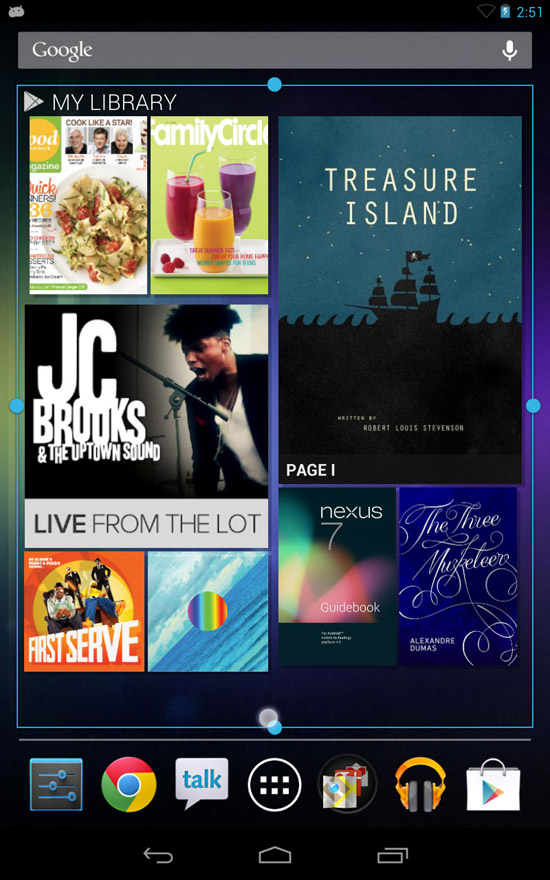
The Google Nexus 7 tablet by Asus is running the latest and greatest version of Android (at this time at least) which is version 4.x, nicknamed Jelly Bean.
If you haven’t used an Android tablet since before the 3.1 Honeycomb version, then you may be confused at how you’re supposed to add widgets to the home screen. No more long pressing on the home screen to add them, they’ve been moved to a different location.
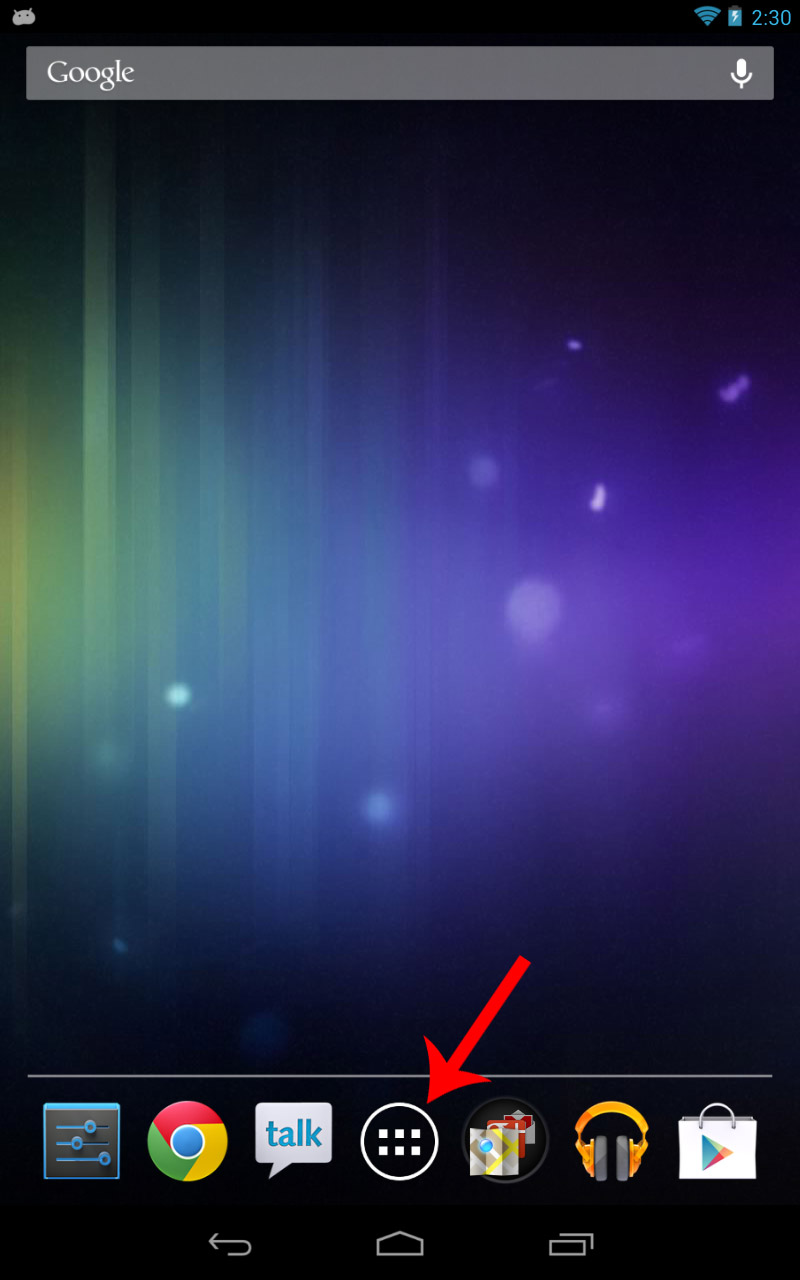
1. Click on your Apps button on the home screen to open up the Apps menu.
2. In the Apps menu, press the Widgets tab at the top to see all of the available widgets.
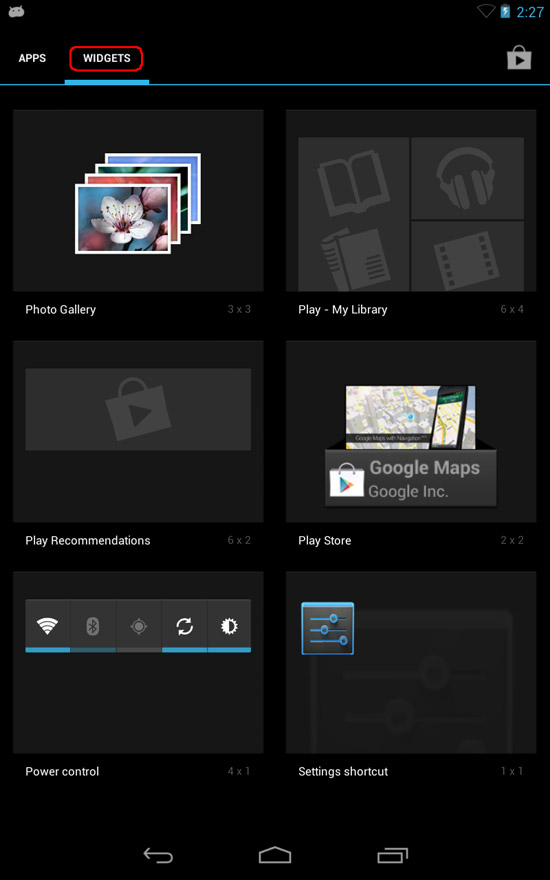
3. From here you can swipe left and right to browse the list of widgets you can add. Once you find the widget you’d like to use, long press it (press and hold for a second or two) and drop it onto your home screen.
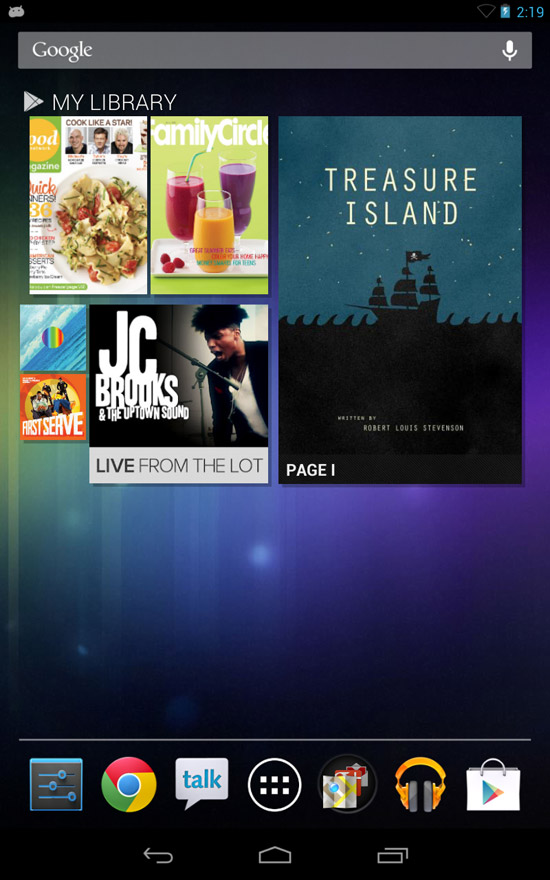
4. You can long press the widget to move it around on your home screen, or some widgets can be resized as well. To resize a widget, long press it and let go, and you’ll see some small dots on the sides showing which sides can be adjusted. If it can be resized on all sides like the one pictured, you can either drag each side separately, or you can press and drag the corner to resize it.