
Diablo 3: How to Decrease Video Lag


In Diablo 3 for the PC, if you don’t have a stellar video card, the default video settings can make your video lag like crazy. This happened on my laptop, so I started digging through the video settings in the menu to see if I could fix it.

I was finally able to get the settings right to get it to run much better, even with my low quality Intel HD on board graphics.

You can click the below image to see a larger version.
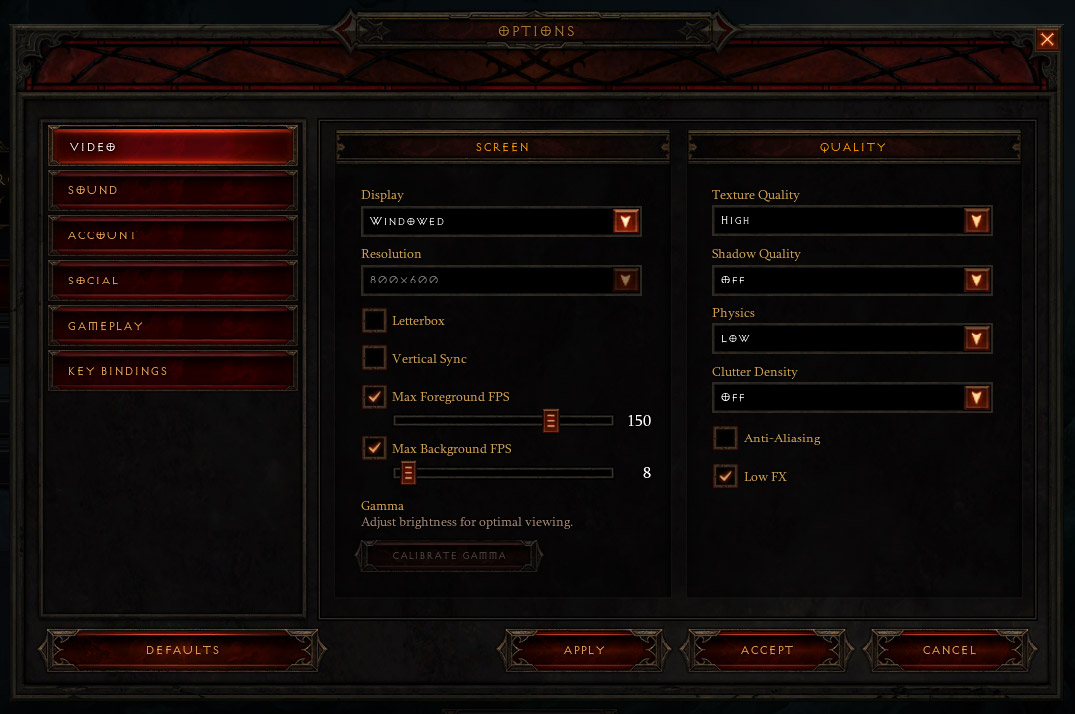
Diablo 3: Tips to decrease video lag

I only set the display to Windowed to take the screenshot, so leave that at Full Screen for better performance.

The main thing that helped my video lag was to reduce the screen resolution. I stepped it down one at a time to find the one that gave me the least amount of lag.

Turn off anti-aliasing and turn on low fx if it’s still not running well after reducing the screen resolution.

If it’s still running poorly after changing those, then you can reduce the other settings on the right to see what works. I was able to reduce the cluster density and shadow quality without reducing the texture quality, so the quality still looks half decent. If you reduce the texture quality, it will look slightly pixelated.

Have you signed up for our mailing list yet? Sign up to get notified about our recent tips, the latest gaming deals, current gaming news, and giveaways we'll be having. Sign up today!

Found this article helpful? Sweet, click a button below..

{ 2 comments… add one }

  • Steve May 23, 2012 at 11:48 am

    For those of you where full screen isn’t an option and you’re running a multi-monitor setup, I would suggest editing the prefs directly. I was doing some *cough* testing from the office, and needed run in a window only. Plus I use a large display for development, and a small usb monitor as well for skyping, instant msging etc — all in addition to my laptop screen. So full screen isn’t an option for me, plus the game doesn’t let you affect resolution in window mode for some reason (at least it didn’t allow me to). But if you edit the prefs directly, you can alter resolution for the window mode.

    Use the gfx setting suggestions that TheDizle mentioned, but also go to prefs file directly.
    The prefs file is called D3Prefs.txt and sits in win7 under: C:\Users\[YOUR USERNAME]\Documents\Diablo III

    Back this up before you change it!

    My laptop screen max is 1366×768. My main monitor max is 1920×1080. I wanted the window and ui to be 1366×768 so I could drag/use on either screen (and also increase performance). I changed the lines:

    DisplayModeWinWidth “1366″
    DisplayModeWinHeight “768″
    DisplayModeUIOptWidth “1366″
    DisplayModeUIOptHeight “768″
    DisplayModeWidth “1366″
    DisplayModeHeight “768″

    And walah! running great! You may notice that the game will slightly alter your numbers to compensate — if you look back at the file after changing it and then running the game. That’s ok, it’s just compensating for your window sizing. Mine actually ended up as:

    DisplayModeWinWidth “1366″
    DisplayModeWinHeight “797″
    DisplayModeUIOptWidth “1366″
    DisplayModeUIOptHeight “768″
    DisplayModeWidth “1350″
    DisplayModeHeight “759″

    Reply edit

Leave a Comment

CommentLuv badge